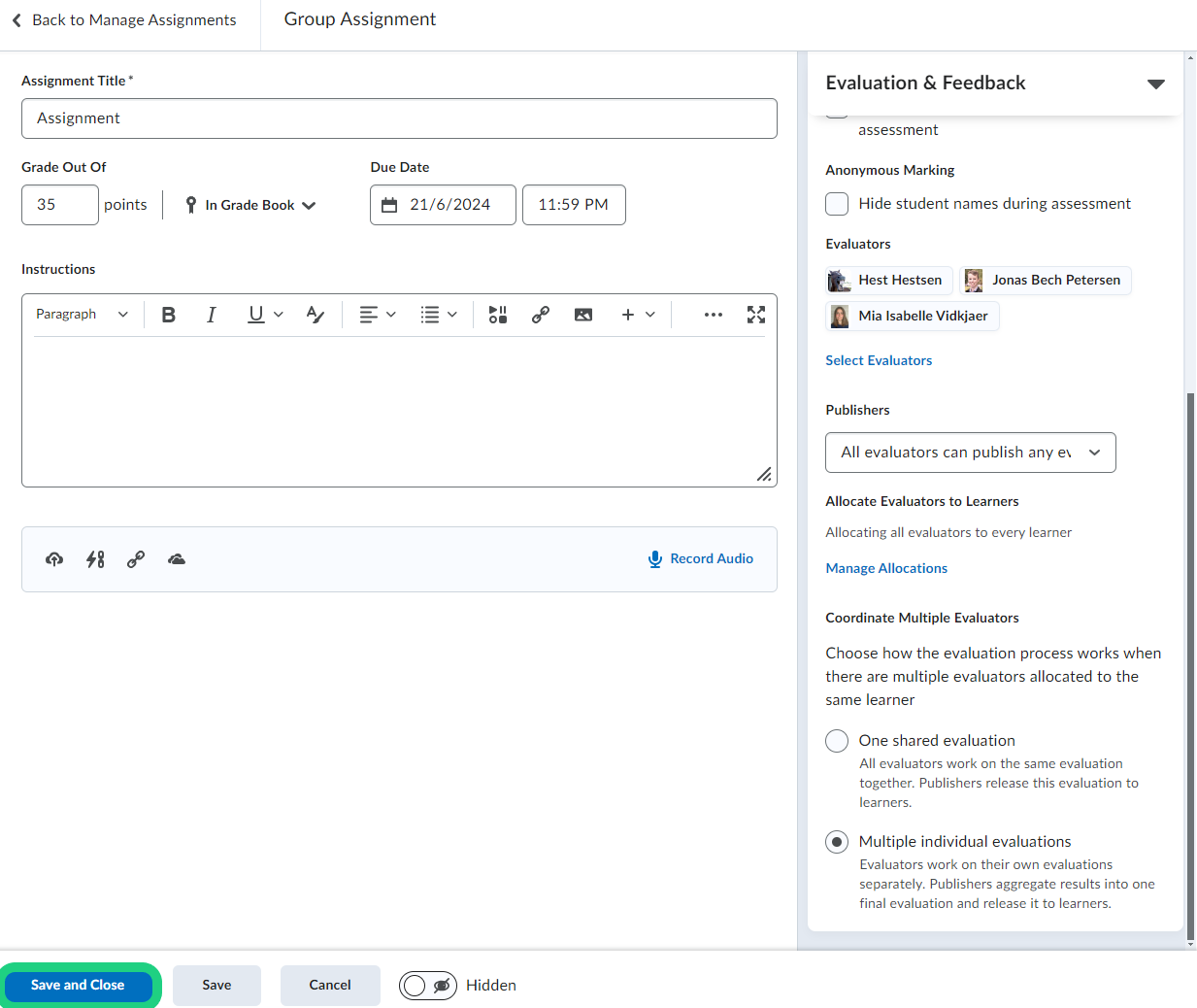
Selecting Evaluators for an Assignment
This new function allows teachers to distribute Teachers or TAs to individual submissions for a more controlled review process.
Note that this function is only available for individual assignments and not group assignments.
Follow these steps:
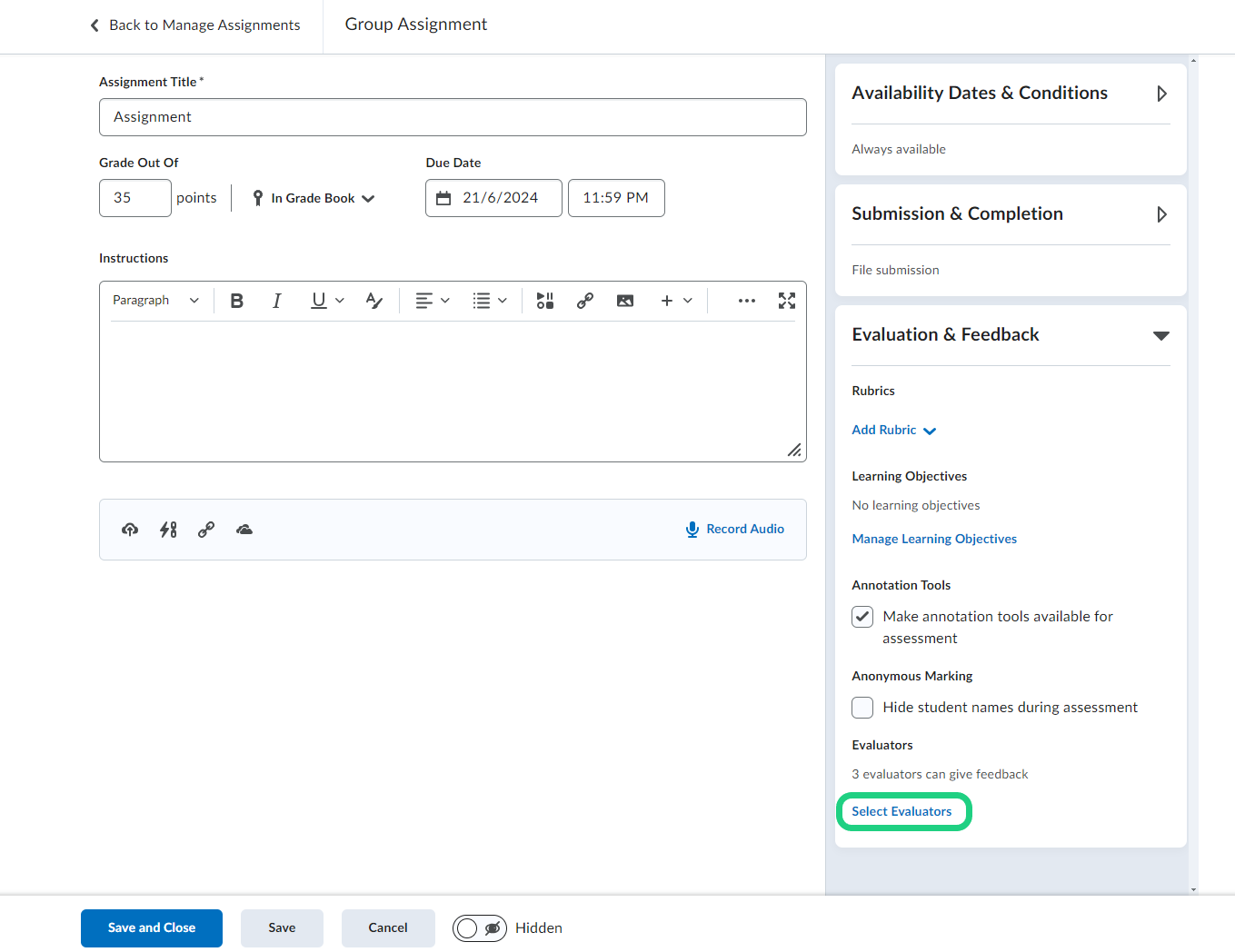
- When editing an assignment open the 'Evaluation & Feedback' dropdown on the right side and click on 'Select Evaluators'.
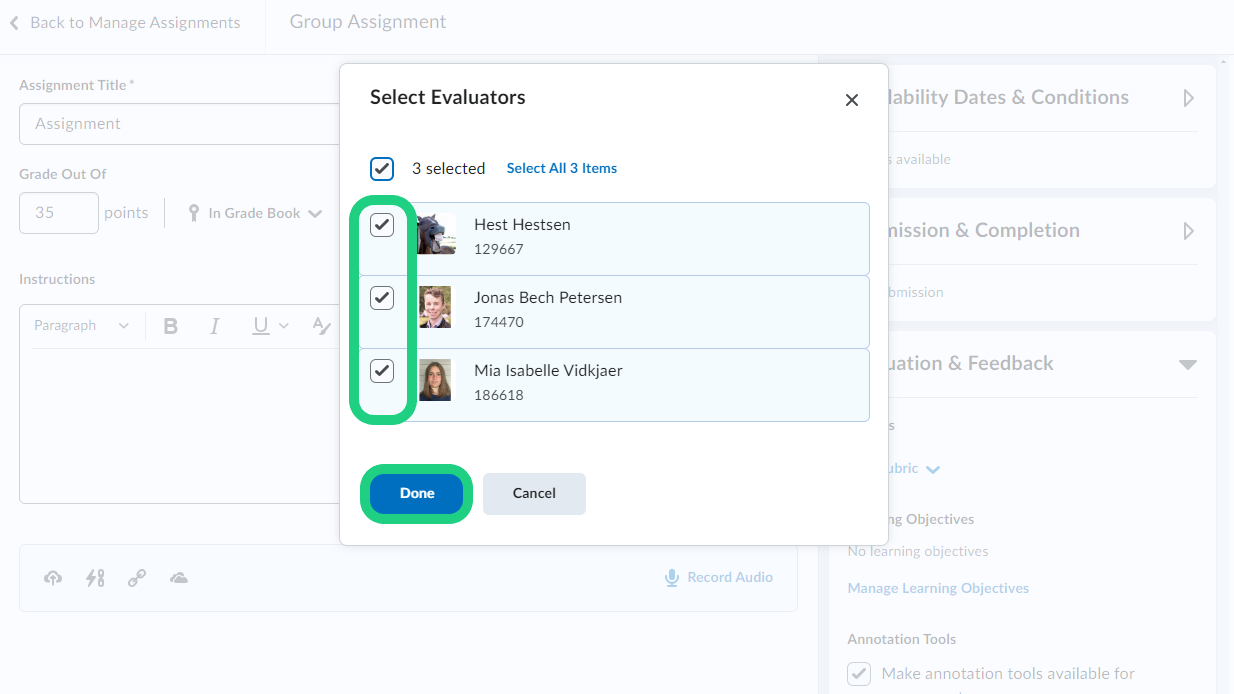
- After selecting the evaluators in the pop-up window, click on 'Done'.
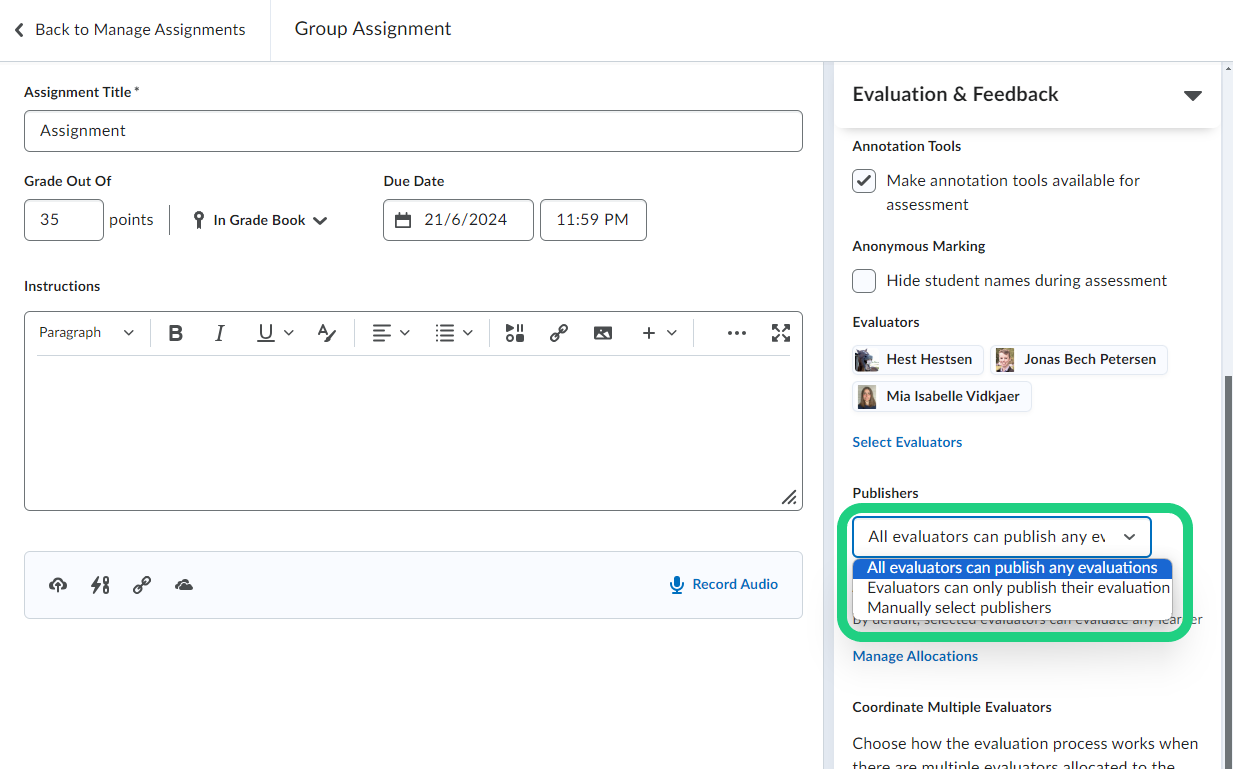
- Now you can select who is able to publish evaluations under 'Publishers'.
- Further down you can select whether you want one shared evaluation with every evaluator or multiple individual evaluations.
Please note: Using the 'Multiple individual evaluations' function means the results must be manually combined into a final evaluation before it can be shared with learners.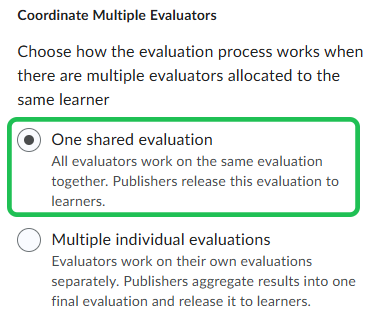
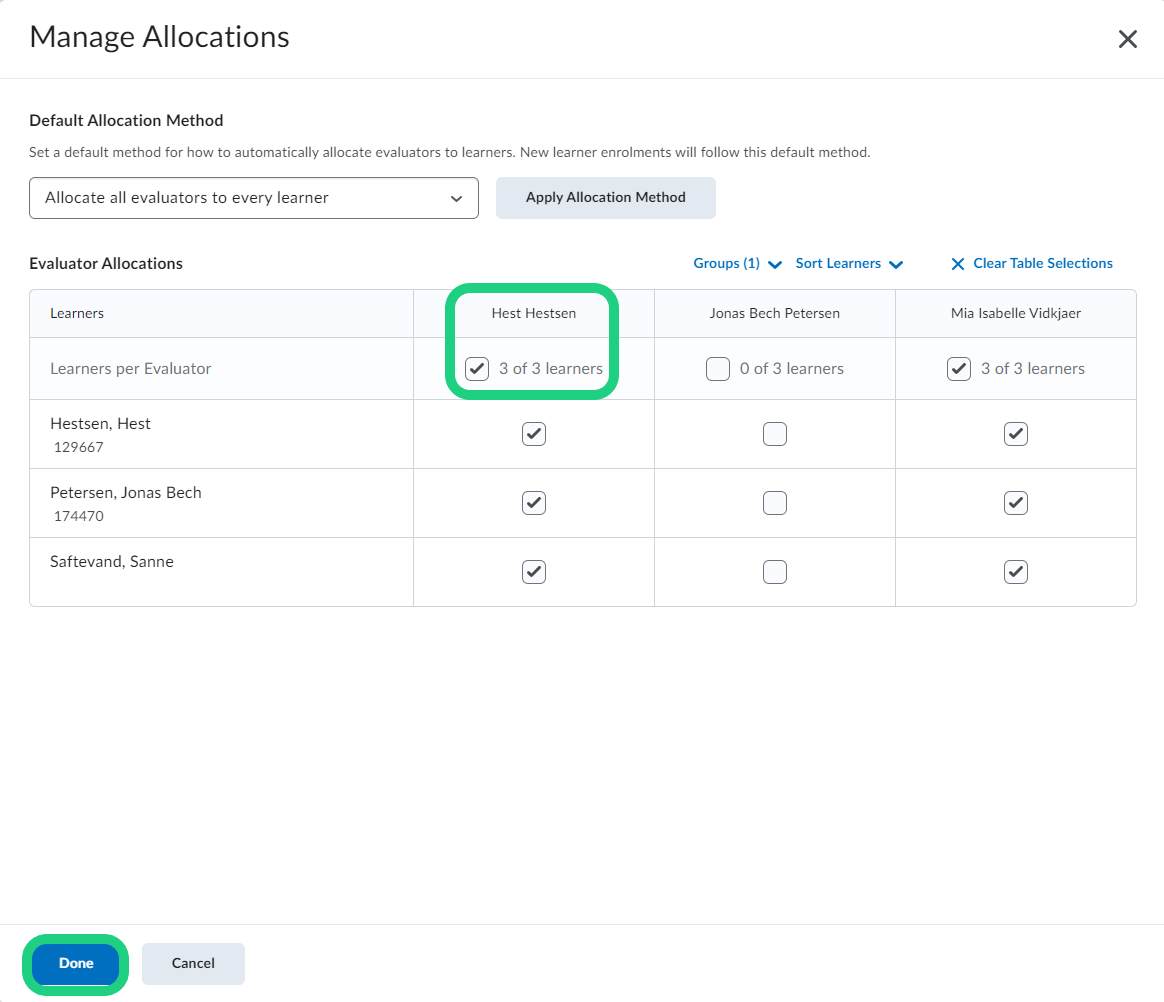
- Click on 'Manage Allocations' to select which students each evaluator should evaluate.
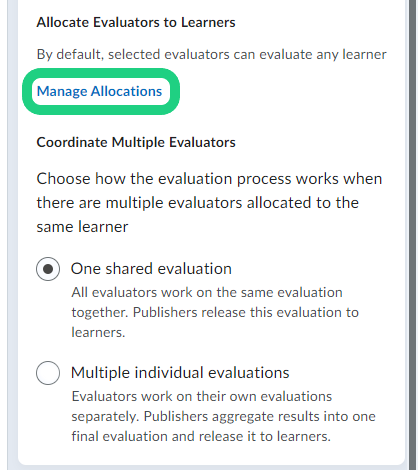
- In the pop-up window you can either select the students to allocate them to an evaluator from the classlist in the pop-up window or sort by groups by clicking on 'Groups'.
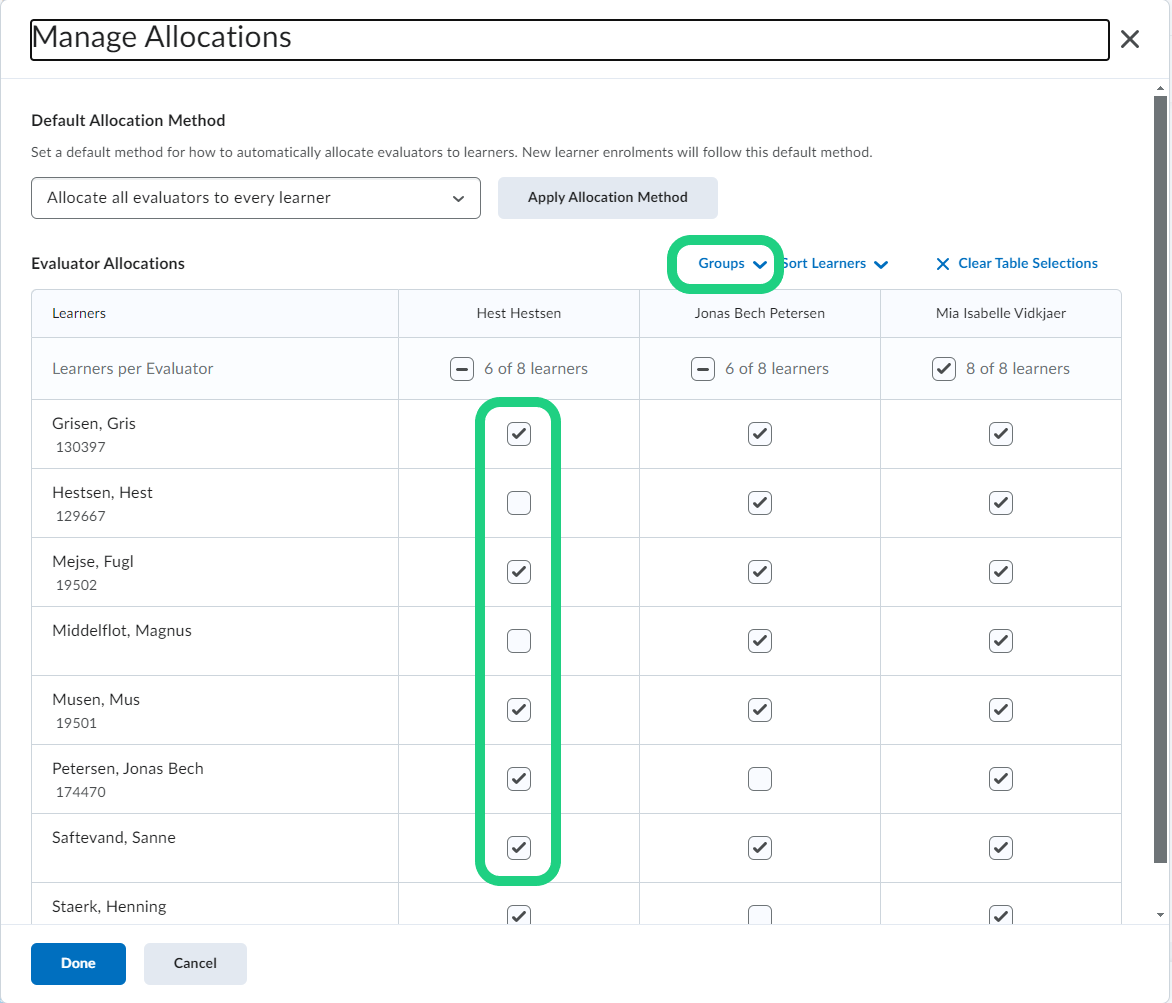
- In the drop-down menu select the first group.
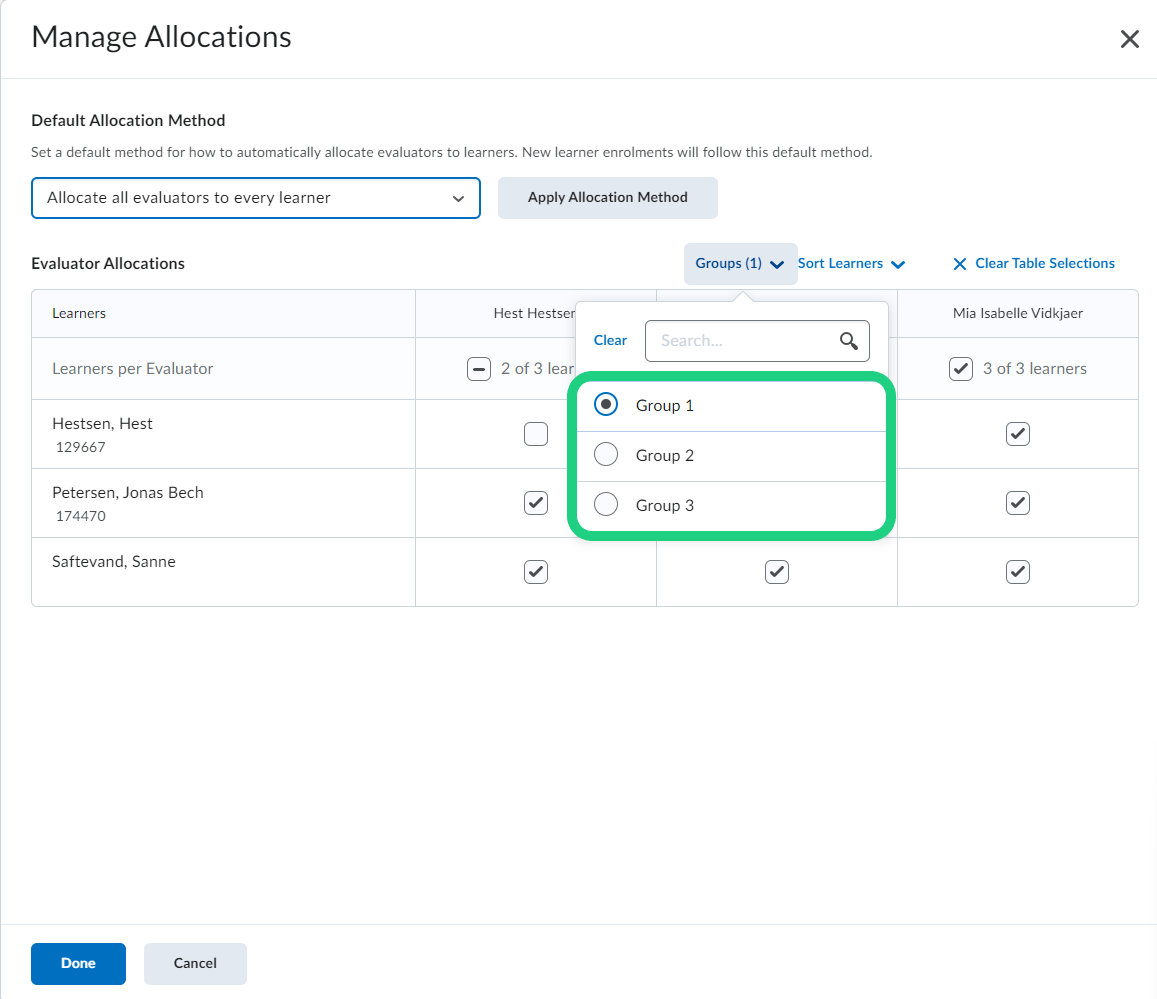
- Now you can allocate each evaluator to a different group and click on 'Done' when you are finished.
- After you are done with editing the assignment click on 'Save and Close'.